
Your own ChatGPT: building a private AI stack on the desk next to you
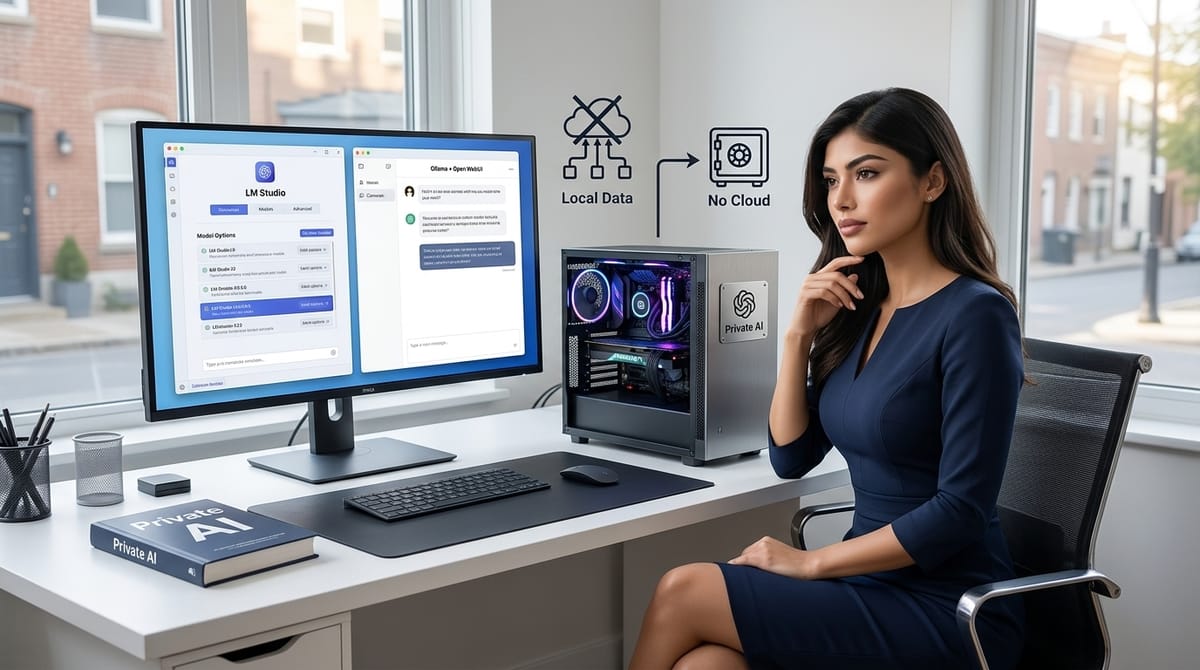
You can run a ChatGPT-class assistant entirely on your own hardware: no subscription, no data leaving the building. This piece walks through the two main routes, LM Studio and the Ollama plus Open WebUI stack, and the extensions that make it replace cloud tools.
Who should read it?
Technical readers and technically curious non-specialists who want AI without the cloud bill or the data leak.
Intro
Type a question into a cloud chatbot and you have made 3 trades without reading the fine print. Your words, files, and work history sit on somebody else's servers, governed by a privacy policy that can change under you. The service costs a monthly fee forever, and the fee has a habit of rising. And the model itself is not yours: features come and go, refusals tighten, nothing stays put.
Private AI stack
Running a language model locally removes all 3 problems at once. The model lives on your machine, the data never leaves it, and there is no meter running. The catch is that "local AI" sounds like a hobbyist rabbit hole, and most people bounce off before they learn the secret: the whole stack now installs in an afternoon. This piece is the map for that afternoon.
The hardware question comes first, because it decides which route is realistic. Then we look at the 2 ways up the mountain, the easy all-in-one and the flexible stack, and finish with the upgrades that make a local setup genuinely replace cloud tools: chatting with your own documents, searching the web privately, and an agent that can touch your code.
First question: does your hardware have the memory?
A local model does not live on a hard drive in any meaningful sense. It lives in RAM while it runs, and the amount of RAM you have decides how big a model you can run. Everything else about hardware flows from that one fact.
Mac owners have the best seat. Apple Silicon Macs (M1, M2, M3, M4, M5, M6) use a unified memory architecture: the CPU and GPU share the same physical memory pool, and the GPU can address all of it. On a Mac, most of that unified pool is available to the model (macOS caps the GPU's share by default, and the cap can be raised). A "32 GB RAM" machine can therefore run models that a PC with the same total RAM and a small graphics card cannot.
The practical guidance: 16 GB of RAM runs basic models comfortably, and 32 GB or more is where larger models and data science workloads get pleasant.
On Windows or Linux, count your NVIDIA VRAM. You want a dedicated NVIDIA GPU with at least 8 GB of VRAM, and the sizing rule of thumb is simple: roughly 1 GB of VRAM per billion parameters at Q8 quantization, plus a little overhead for the context. An 8 GB card runs an 8B model at Q8; a 24 GB card runs a 24B model at Q8. Quantization, explained in the next section, is what makes that 1-to-1 arithmetic possible at all, because it shrinks each parameter below its full-precision size.
Everything that follows assumes you clear that bar. If you do not, the model selection section has advice for small machines, too.
Route one: LM Studio, the all-in-one GUI
If you never want to see a terminal, LM Studio is the route. It is a desktop application for Mac, Windows, and Linux that wraps the entire workflow into one window: search for models, download them, chat with them, serve them to other apps.
Inside LM Studio you browse and download models directly, no external sites needed. The models come in 2 formats: MLX and GGUF.
A practical note: this is an either/or for a single deployment, not a ranking.
GGUF is the universal format; MLX is the Apple-Silicon-optimized alternative.
MLX (Apple's machine-learning framework format)
Apple's own array framework for Apple Silicon, designed to make full use of unified memory. MLX models are typically unquantized or lightly quantized and can be faster than GGUF on M-series Macs, especially in prompt processing.
GGUF (GPT-Generated Unified Format)
The standard quantized model format for running LLMs on CPU and GPU. It works everywhere: llama.cpp, Ollama, and all quantization levels (e.g. Q4, Q8). GGUF is the safe default and the only choice on non-Apple hardware or with tools like Ollama.
When to prefer which
- GGUF: cross-platform compatibility, Ollama integration, tight RAM budgets (strong quantization), non-Apple machines.
- MLX: you are on an M-series Mac with unified memory (>= 32 GB), want maximum speed on Apple hardware, and use LM Studio or oMLX as the runtime.
Quantization
Quantization is compression for neural networks: instead of storing every parameter at full 32-bit or 16-bit precision, a quantized model stores each one in fewer bits. Q4 (4-bit) and Q8 (8-bit) are the levels you will actually choose between, and the trade is exactly the one the rule of thumb implied: Q4 halves the memory cost of Q8 and runs faster, at a small cost in answer quality. For most chat and coding work the cost is barely noticeable; for careful reasoning tasks, Q8 is worth the extra gigabytes.
3 features make LM Studio more than a toy
For a single person who wants a private ChatGPT with minimum ceremony, LM Studio is done in 20 minutes and there is no shame in stopping there.
- An offline chat interface, so the model works with the internet unplugged.
- A local server that exposes the loaded model through an API compatible with OpenAI's. This is the quietly powerful part: any tool written to talk to ChatGPT can be pointed at
localhostinstead, and your existing scripts and editors keep working while the inference moves onto your desk. - Vision support: load a vision-capable model and you can hand it images to analyze, still entirely offline.
Route two: Ollama plus Open WebUI, the flexible stack
The 2nd route trades a little setup for a lot more capability, and it is the one that most closely replaces the cloud experience, including document analysis and web search. It has 2 halves: Ollama as the engine, Open WebUI as the face.
Step one: install Ollama. Download it from ollama.com; on a Mac, drag it into Applications. Ollama runs the models from the terminal, and its commands are the whole learning curve:
ollama pull llama3.1    # download a model
ollama run llama3.1     # chat with it immediately, in the terminal
ollama list             # see what is installed
Ollama handles for example Llama, DeepSeek, Qwen, and most of the open-source ecosystem, so it becomes the single engine behind every tool you attach to it later.
Step two: install Open WebUI. This is the polished, browser-based interface that looks and feels like ChatGPT: conversations, history, multiple models side by side. It runs in Docker, so install Docker Desktop first if you do not have it. Then run:
docker run -d -p 3000:8080 --restart always \
  --add-host=host.docker.internal:host-gateway \
  -v open-webui:/app/backend/data \
  ghcr.io/open-webui/open-webui:main
The flags matter. -p 3000:8080 maps the container's port 8080 to port 3000 on your machine, which is where you will reach the interface. The --add-host line lets the container, which lives in its own network namespace, reach Ollama running on the host. The -v line gives the UI a persistent volume, so your accounts and chat history survive container restarts. Exact flag needs vary slightly by OS, but this command is the canonical starting point.
Open http://localhost:3000, create an admin account, and you have a private ChatGPT in your browser.
Chatting with your own documents: RAG without the cloud
A chatbot that answers from its training data is useful. A chatbot that answers from your PDFs, spreadsheets, and logs is a different category of tool, and the technique is RAG, retrieval-augmented generation: instead of the model guessing from memory, relevant passages of your documents are found by search and handed to the model as context before it answers.
Open WebUI has this built in. Upload a file directly into a chat and it is embedded locally, meaning your document is turned into searchable form on your own machine, never uploaded anywhere. For a private-document workflow, this alone justifies the Open WebUI route: drop in contracts, meeting notes, or research papers and interrogate them without a byte leaving the house.
When you outgrow the built-in version and want programmatic control, the same idea is a weekend of Python away. The sentence-transformers library provides the embedding models; a small one worth reaching for is google/embeddinggemma, which produces quality vectors at a size that runs anywhere. FAISS, Facebook's vector index library, stores and searches those vectors fast. The result is a semantic search engine over your own corpus: embed your documents, index them, and query them from your own scripts. Built-in upload for daily use, custom pipeline when you want to wire retrieval into an application.
Searching the web privately
The one thing a local model lacks is current information: it does not know who won the 2025 Nobel Peace Prize, because nobody told it. The fix is SearXNG, a self-hosted metasearch engine that runs in Docker alongside Open WebUI. You point Open WebUI's web search settings at your local Searxng container (something like http://searxng:8080/search?q=, which requires both containers to share a Docker network; the companion article covers the compose file), and from then on the model can search the web for up-to-date facts, cite its sources, and keep your query history on your machine instead of in an advertising company's logs.
SearchXNG
Searxng deserves a walkthrough of its own, and there are: the setup and configuration details are covered in separate articles.
- SearXNG as your private search API: from a Docker container to a Python script that answers its own questions
- The search engine that never phones home: what local semantic search keeps private
- Give your local LLM fresh eyes: private web search with SearXNG and Ollama
An agent for the code
The frontier move is letting a local model act, not just answer. A coding agent connects to your local models through Ollama or LM Studio and then goes to work: it reads your code, runs your tests, and applies changes autonomously. When the agent lives on your own hardware, the usual objection to AI coding tools, "my code is being sent to a third party", simply dissolves.
Crush (Charm / Charmbracelet)
Crush is the local-friendly representative of a whole tool class. It is a terminal coding agent in Go. Its distinguishing feature is LSP-aware context (it feeds language-server diagnostics into the model) plus polished terminal UI. Supports OpenRouter, Ollama, llama.cpp, and the major cloud providers.
OpenCode (Anomaly)
Is the bigger, more established sibling and also runs against local Ollama models. OpenCode is the market leader in this category with 147,000+ GitHub stars, provider-agnostic with 75+ model providers, open source (Apache lineage). Same core idea as Crush (autonomous coding in the terminal, multi-model). Crush actually forked from the original OpenCode Go codebase after a contested 2025 split, which is why they feel so similar.
"Crush is one of a growing class of terminal coding agents; OpenCode is the larger, more provider-agnostic alternative, and both connect to local models through Ollama."
Picking the model
The last decision, and the one people agonize over most, is which model to pull. A short field guide:
- For coding: Qwen3.8-flash and DeepSeek-4.1-flash are the standouts. Both are effective well beyond their parameter counts on programming tasks.
- For general use: Llama 3.3 is the dependable all-rounder, OpenAI's open-weight gpt-oss models (20B class), and Gemma4 are a strong second options; start with one of these if you want a single model that handles everything reasonably.
- On modest hardware (8 GB class): go quantized and go small. Q4 quantization plus a 7B or 8B parameter model fits where full-size models will not, and the quality loss for everyday tasks is small. MoE models punch above this weight class: because only a few billion parameters are active per token, a "30B" MoE can feel like a much larger model while costing small-model compute.
- Keep an eye on the Chinese open-source scene: DeepSeek and Qwen regularly outperform Western counterparts on benchmarks per gigabyte, largely through Mixture-of-Experts (MoE) architectures, where only a fraction of the model's parameters activate per token. MoE gives you big-model quality at small-model compute cost, which matters enormously when the compute is your own GPU.
The meta-strategy is cheaper than any single choice: pull 2 or 3 models, run the same prompt through each, and keep the ones that earn their disk space. Storage is the one resource local AI makes cheap.
Setup checklist
Working through in order:
- Check your hardware: Mac with M-series chip and at least 16 GB of RAM, or a PC with an NVIDIA GPU of 8 GB VRAM or more (1 GB per billion parameters at Q8).
- Install Ollama from ollama.com and pull your first model:
ollama pull llama3.1. - Install Docker Desktop, then run the Open WebUI container and open
http://localhost:3000to create your admin account. - Pull the models you need: a general model, plus Qwen2.5-Coder or DeepSeek-R1 if you code.
- Test local RAG by uploading a private PDF into an Open WebUI chat and asking it questions.
- Optional, if you want a zero-terminal setup: install LM Studio instead of steps 2-3, download a MLX (Apple only) or GGUF model at Q4 or Q8, and start its local OpenAI-compatible server.
- Optional upgrades: add SearXNG for private web search (see the companion article), and install Crush for agentic coding on top of your local models.